NameQuick Review for MacOS: The App That Names Your Files by What's Inside
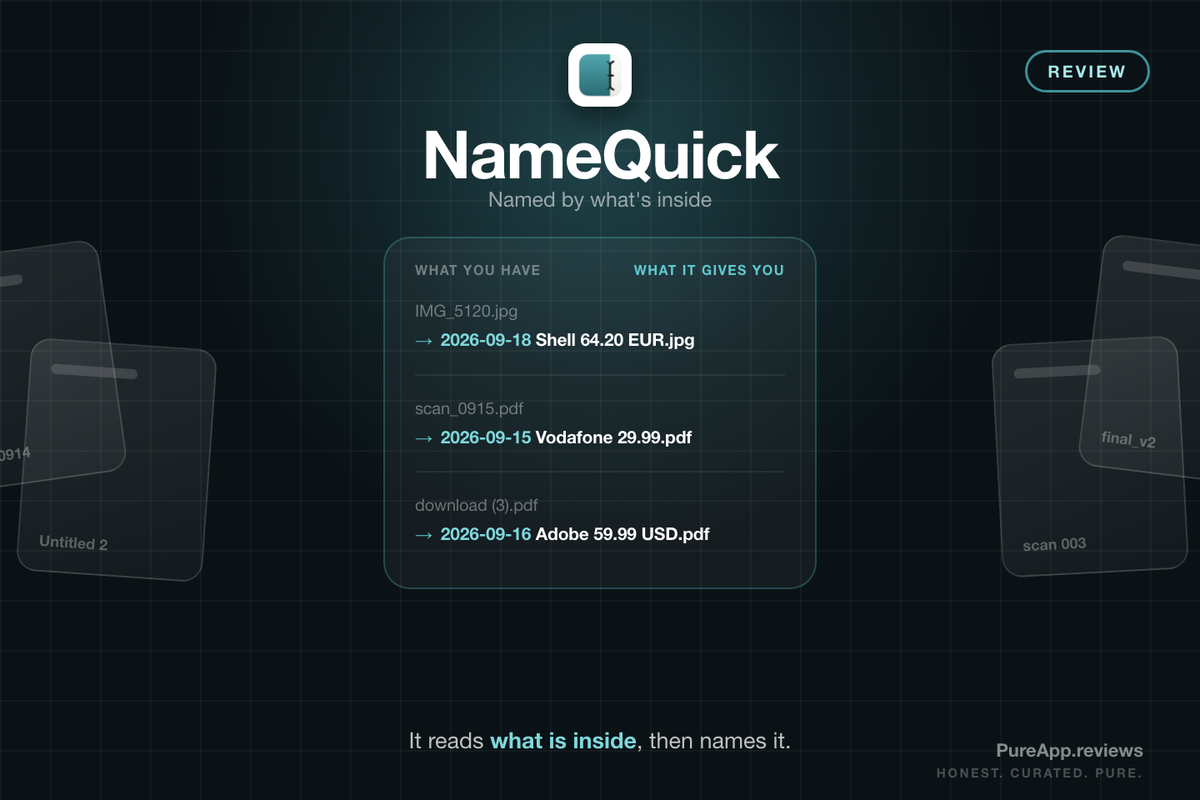
NameQuick opens your file, reads what is in there, and names it accordingly. It turned IMG_5120.jpg into something I could actually find later. Here is what it costs and where it falls short.
 NameQuick
Full disclosure before we get into it: the developer gave me a review license for NameQuick so I could try it properly. It did not cost me anything, and it did not change a single thing about what follows. The short version is that the app works, and it works very well.
Every Mac user ends up with the same problem eventually. You have a folder with 400 files in it and half of them are called IMG_5120.jpg, scan_0915.pdf, or download (3).pdf. Finder will happily rename them in bulk, as long as you already know the pattern you want and the names do not depend on what is inside the files. That last part is the whole problem.
NameQuick takes a different angle. It opens the file, reads what is in there, and names it accordingly.
What Is NameQuick?
NameQuick is a file renamer that names files by their contents. It reads the text inside PDFs and Office documents, runs OCR on scans and screenshots, and reads EXIF and media metadata from photos. It handles more than 70 file extensions, which covers basically anything you are likely to throw at it.
It comes out of Amsterdam, built by Josef Moucachen, and it started life on the Mac before adding Windows. The current release is NameQuick 3. The company was founded in 2025, so this is a young app from a small team, and that is worth knowing before you hand it your entire Downloads folder. You can read more at namequick.app.
How It Names A File
You point NameQuick at a folder or drag in a pile of files. It works through them and comes back with proposed names. Each suggestion sits next to the original filename, so you can see exactly what came from what, and there is a running count of how many files are still waiting. Then you approve, and it renames.
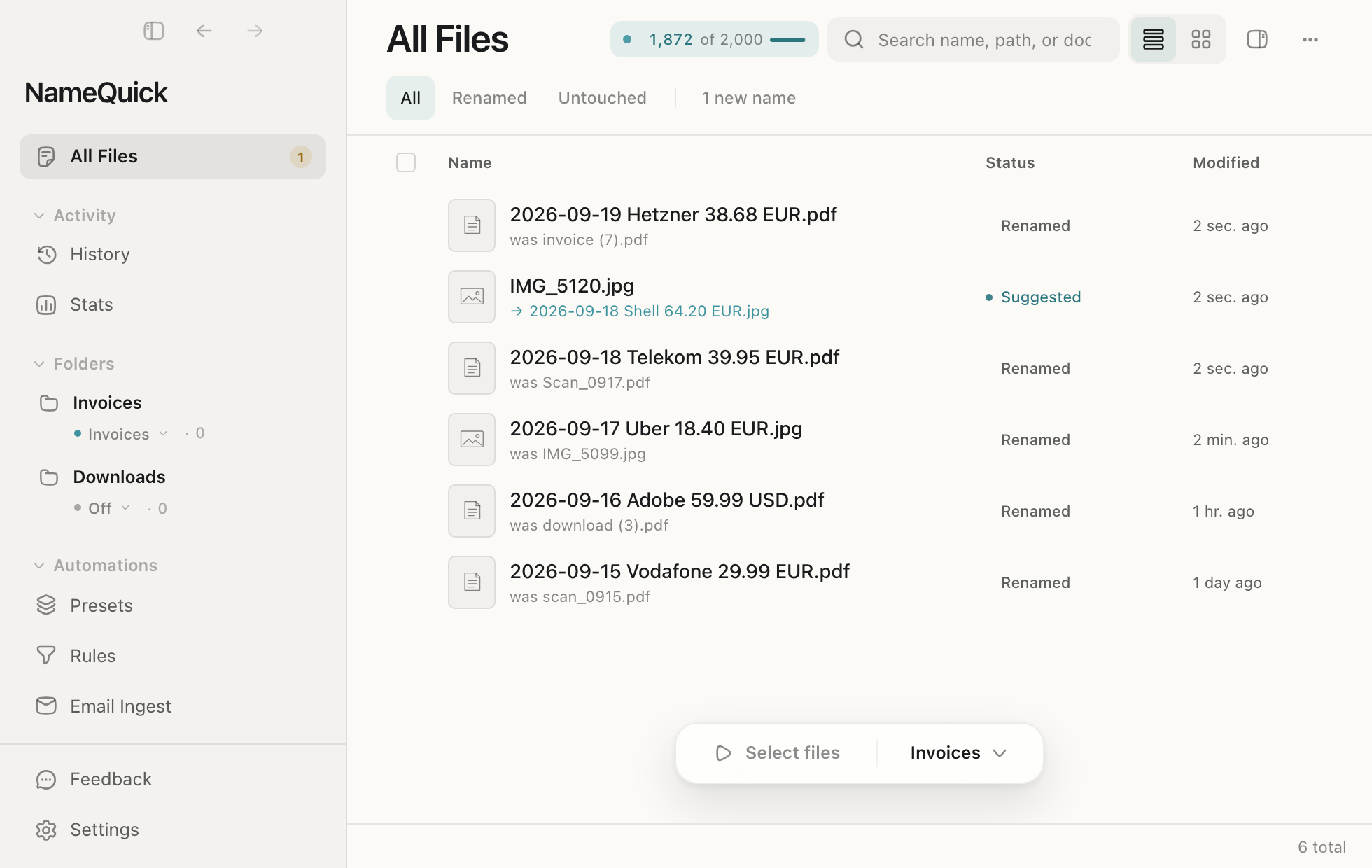
The naming itself runs on Presets. A preset is a filename format built from fields, and the app fills those fields in by reading the document. An invoice preset turns invoice (7).pdf into 2026-09-19 Hetzner 38.68 EUR.pdf, pulling the date, the vendor, and the amount straight out of the PDF. You can also describe the convention you want in plain English and let the app work out what you meant.
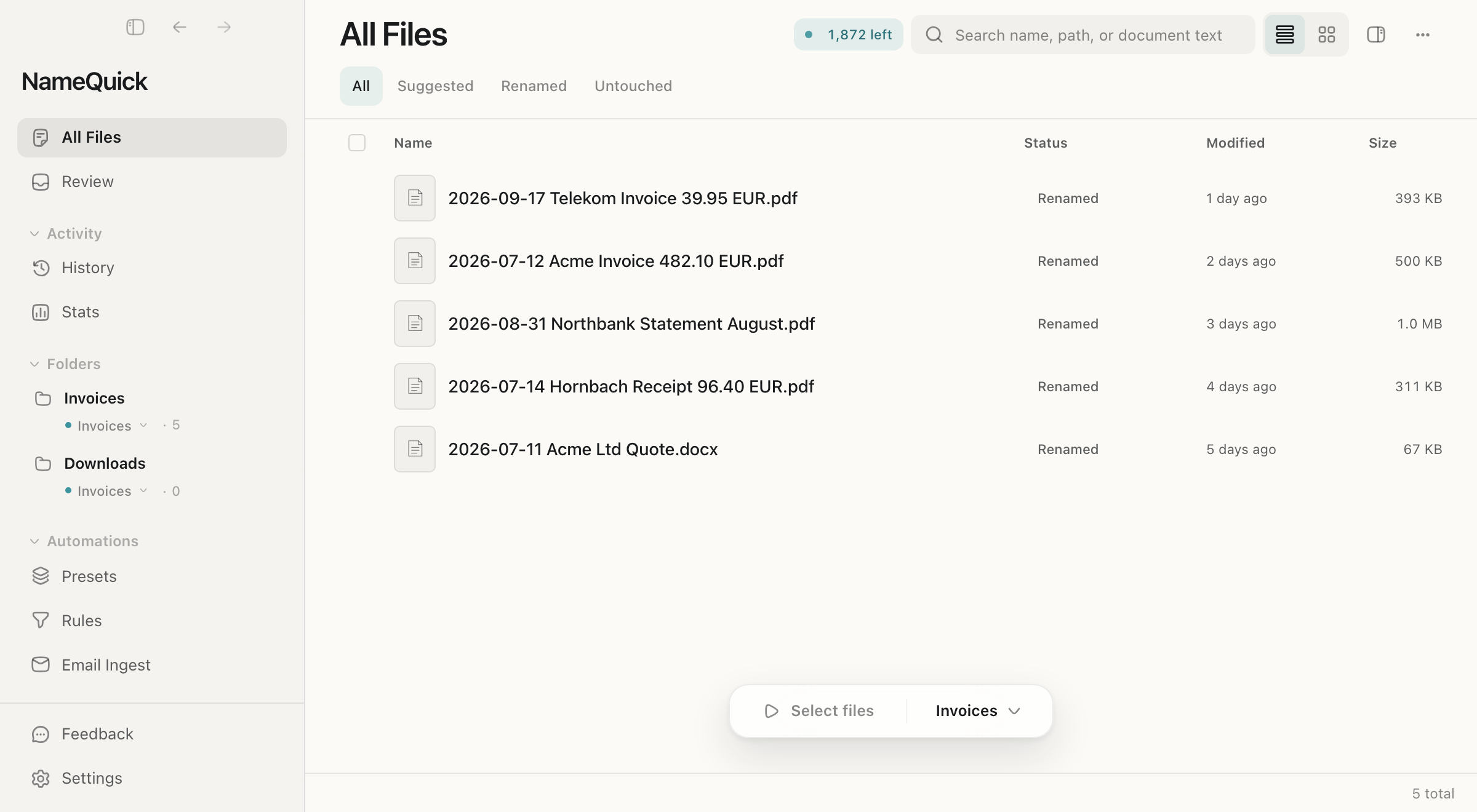
Rules handle everything that is not naming, like moving a file into a folder or tagging it once it has been renamed. Conditions can be simple or combined with AND and OR logic. If you want your invoices sorted into year and month folders with a color label attached, that is a preset and a rule, not a weekend of scripting.
Setting It To Watch A Folder
This is the part I actually used, and it is where the app earns its keep. Instead of pointing NameQuick at a folder once and walking away, you add the folder to the sidebar and let it watch. Anything that lands in there gets read and named without you asking.
I pointed it at a couple of folders where my images land, and I let it rename them as they showed up. That was the entire setup. Files that arrived with names that told me nothing came out the other side with names that described what they actually were. I stopped thinking about filenames completely, which sounds like a small thing until you remember how much time you lose hunting for a file you cannot identify.
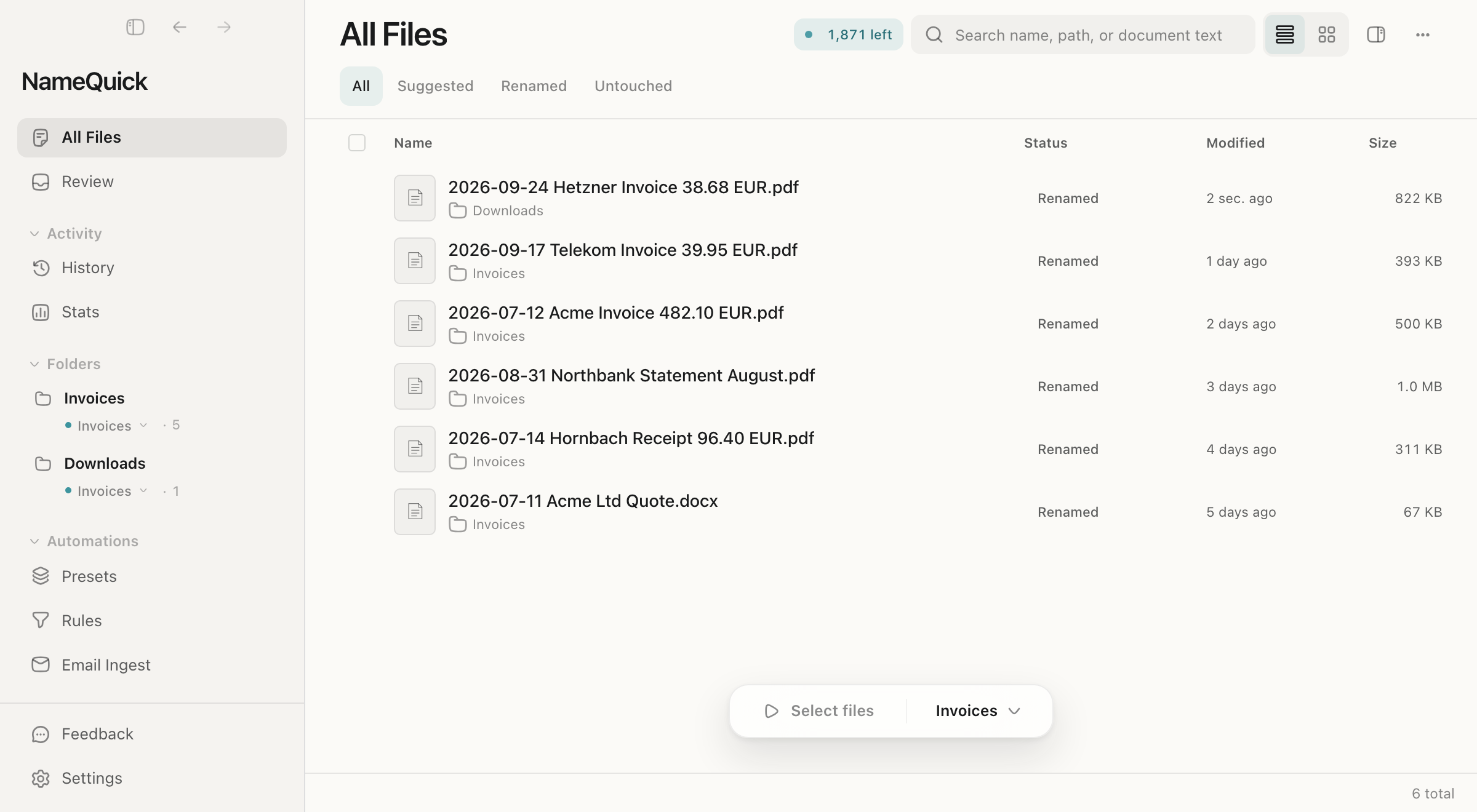
You are not stuck letting it run loose, either. The app can review every proposed name with you before it touches anything, or apply them automatically as files arrive, and you can switch between the two at any point.
 How I Use It
Does It Get The Names Right?
In my experience, yes, and this is the part that surprised me. I went in expecting to spend my time correcting the app. I did not. It reads a document, produces the date, the company, and the amount, and does that consistently rather than occasionally.
The safety net matters as much as the accuracy. Nothing gets renamed without your approval unless you explicitly tell it otherwise, and the History view can undo a batch after the fact. If a suggestion is wrong, you reject it and the file keeps the name it already had.

One thing to know before you start experimenting, because it is the detail most likely to catch you out. On the metered plans, a rename counts when the suggestion is created, not when you approve it. A suggestion you reject still counts against your monthly total, and so does one the app generated but could not apply. On a 500 rename plan, that works out to roughly 16 a day.
Privacy: Three Very Different Answers
NameQuick gives you three genuinely different ways to run it, and the difference is not cosmetic.
With a local model, running through Ollama, LM Studio, or MLX, nothing leaves your Mac at all. Your files and everything inside them stay where they are.
With your own API key, you connect OpenAI, Anthropic, Google, or OpenRouter directly. What leaves your Mac is only what the app needs to name the file, which is the extracted text or, if you allow it, a page image. That traffic is billed to you at your provider's rates.
With the Managed plan, NameQuick sends the extracted text or image to its own servers in the EU. That data is encrypted, deleted within 24 hours, and the company says it is never used to train models.
Only the first of those is genuinely private, and I appreciate that the app does not pretend otherwise. If you handle anything sensitive, run it locally and the question goes away entirely.
What It Costs
NameQuick splits its pricing in two, and the split matters more than the numbers do.
Self-Managed costs $69.00 USD once. You bring your own API key or run a local model. The license covers one device, Mac or Windows, and you pay your AI provider directly. That is the catch: $69.00 USD is not the total cost, it is the entry fee. If you use a cloud provider, you keep paying them every month from then on. If you run a local model, you do not, and your files never leave your Mac.
Managed AI is a subscription and you never think about keys. Plans run $12.00 USD a month for 500 renames, $29.00 USD for 2,000, $59.00 USD for 5,000, and $99.00 USD for 10,000. Pay annually and you get two months free, and there is no device limit. There are also one-off rename packs, $19.00 USD for 500 renames and $39.00 USD for 1,500, valid for 12 months, which is handy if you have one big cleanup to do and do not want a subscription.
Both paths start with 30 free renames and no time limit, and neither one asks for a card up front.
Setapp is the third way in. NameQuick is listed there from $45.98, and Setapp labels the entry app only, which points at the application rather than the AI running behind it. If you already pay for Setapp, start from the listing and treat the AI cost as its own decision, because that part does not disappear. If you are not a Setapp subscriber, this changes nothing for you.
Here is the honest math. For a single Mac, the Self-Managed license is the better deal, as long as you are comfortable managing a key and an API bill. The Managed plans make far more sense the moment you own a second machine, because that $69.00 USD covers exactly one.
How It Compares
Finder already does batch renaming and it is free. You can replace text, add text, or build a name from a format with the date and a counter. For a folder of photos you want numbered, that is all you will ever need, and you should just use it.
Where Finder stops is content. It has no idea what is inside a file, so it cannot name an invoice by its vendor or a screenshot by what it shows. The other option is doing it by hand with an AI chat, which genuinely works right up until the eleventh file, at which point you are doing the copy and paste dance for an hour. NameQuick's value is doing that across an entire folder on its own, with an undo button. Pricing for both editions lives at namequick.app.
Who Should Use It
Best for: anyone who accumulates screenshots, scans, receipts, invoices, contracts, or research PDFs, and who gave up on meaningful filenames a long time ago.
Also good for: freelancers and small businesses buried in paperwork, since the invoice handling is genuinely strong, and anyone who wants their files organized without handing their contents to a cloud service.
Not ideal for: people whose files are already named well. If your photos are dated and sorted and your documents have sane names, this solves a problem you do not have. It is also hard to justify if all you need is pattern renaming, because Finder does that for nothing.
- ✓Reads what is inside a file instead of what it is already called. OCR for scans and screenshots, EXIF for photos, real text for PDFs and Office documents.
- ✓Watch Folders rename files the moment they land, and they follow subfolders and cloud folders.
- ✓Nothing gets renamed until you approve it, and History can undo a whole batch afterwards.
- ✓Three genuinely different privacy paths, including a local model where nothing leaves your Mac at all.
- ✓Preserves file dates and extensions, so your sorting and your backups survive the rename.
- ✓One workflow across Mac and Windows, plus a Mac App Store version if you prefer buying there.
- ✗The $69 Self-Managed license is really $69 plus your own API bill, every month, forever.
- ✗That same $69 covers one device. If you own two Macs, you are buying two licenses.
- ✗On metered plans, a suggestion you reject still counts as a rename.
- ✗Finder's built-in batch rename is free and handles pattern renaming fine. NameQuick only pays off when the contents matter.
- ✗A young app from 2025, so there is no long track record behind it yet.
Final Verdict
NameQuick does the one thing I wanted from a renamer, and it does it without supervision. It reads a file, gives it a name that means something, and moves on. I set it loose on the folders where my images land, it handled them as they arrived, it got the names right, and I stopped thinking about filenames.
The app is not the hard part here. The pricing is. $69.00 USD for a single device plus your own API bill is a real commitment for a utility, and the 500 rename Managed tier goes faster than you would expect once you know a rejected suggestion still counts against you. If you own two Macs, budget for two licenses or take a subscription instead.
Even so, if your Downloads folder is a graveyard of IMG_5120.jpg, this is the best answer I have found and I would pay for it myself. It is a young app from a small team, it works, and it earns its place on my Mac. You can see it for yourself at namequick.app.