CleanShot X: The Screenshot Utility That Makes Apple's Built-In Tool Feel Incomplete
Discover why CleanShot X is one of the best screenshot and screen recording tools for MacOS. Read our in-depth review covering features, performance, pricing, pros, cons, and whether it's the right productivity app for your workflow.
There are very few applications that completely change the way you use your Mac every single day. Most utilities promise to save time or improve productivity, but after the initial excitement wears off, they often fade into the background and become something you rarely think about. CleanShot X is one of the rare exceptions.
When I first installed CleanShot X, I expected a more polished version of Apple's built-in Screenshot utility. After all, how much better could taking screenshots really become? Within the first hour or so, I realized I had underestimated just how much thought had gone into this application. Every feature feels purposeful, every shortcut feels natural, and every interaction has clearly been designed by people who understand how Mac users actually work.
Whether you're writing documentation, creating tutorials, reviewing software, answering customer support tickets, or simply sharing something interesting with friends, screenshots are probably a much bigger part of your daily workflow than you realize. Apple has included a capable screenshot utility with MacOS for years, and for occasional use it's perfectly adequate. But if screenshots are something you take multiple times throughout the day, CleanShot X quickly shows just how many unnecessary steps Apple's solution still requires.
What impressed me most wasn't a single standout feature. Instead, it was the collection of dozens of thoughtful improvements that make capturing, editing, organizing, and sharing screenshots feel almost effortless. After using it for several weeks, I found myself instinctively reaching for CleanShot X without even considering the built-in alternative. That's usually the sign of an application that's doing something exceptionally well.
 CleanShot X
What Is CleanShot X?
Developed by Make The Web, CleanShot X is an all-in-one screenshot and screen recording application built exclusively for MacOS. While its name might suggest that it's only designed for taking screenshots, it actually does much more than that. It combines image capture, screen recording, annotation tools, scrolling screenshots, cloud sharing, image editing, and several workflow enhancements into a single application that feels remarkably cohesive.
Rather than replacing one feature in MacOS, CleanShot X enhances an entire workflow. It isn't trying to reinvent the screenshot; it's trying to remove every small frustration that comes after taking one. That's an important distinction.
Taking a screenshot is only the beginning. Most of the time you'll need to crop it, hide sensitive information, add arrows, include text, upload it somewhere, or send it to someone else. Apple's built-in utility stops after the capture itself, leaving you to open Preview or another editor to finish the job. CleanShot X keeps everything in one place, allowing you to move from capture to sharing in just a few clicks. That streamlined workflow is what ultimately makes the application feel so valuable.
Installation And First Impressions
Installing CleanShot X couldn't be much easier. After downloading the application, MacOS asks for the standard permissions required for screen recording and screenshots. Once those permissions are granted, the application quietly settles into the menu bar and remains available whenever you need it.
From the moment I launched it, I could tell this wasn't another utility that had been rushed to market. The interface immediately feels polished and intentionally designed. Menus are clean, icons are easy to understand, and nothing feels cluttered or overwhelming despite the number of features packed into the application.
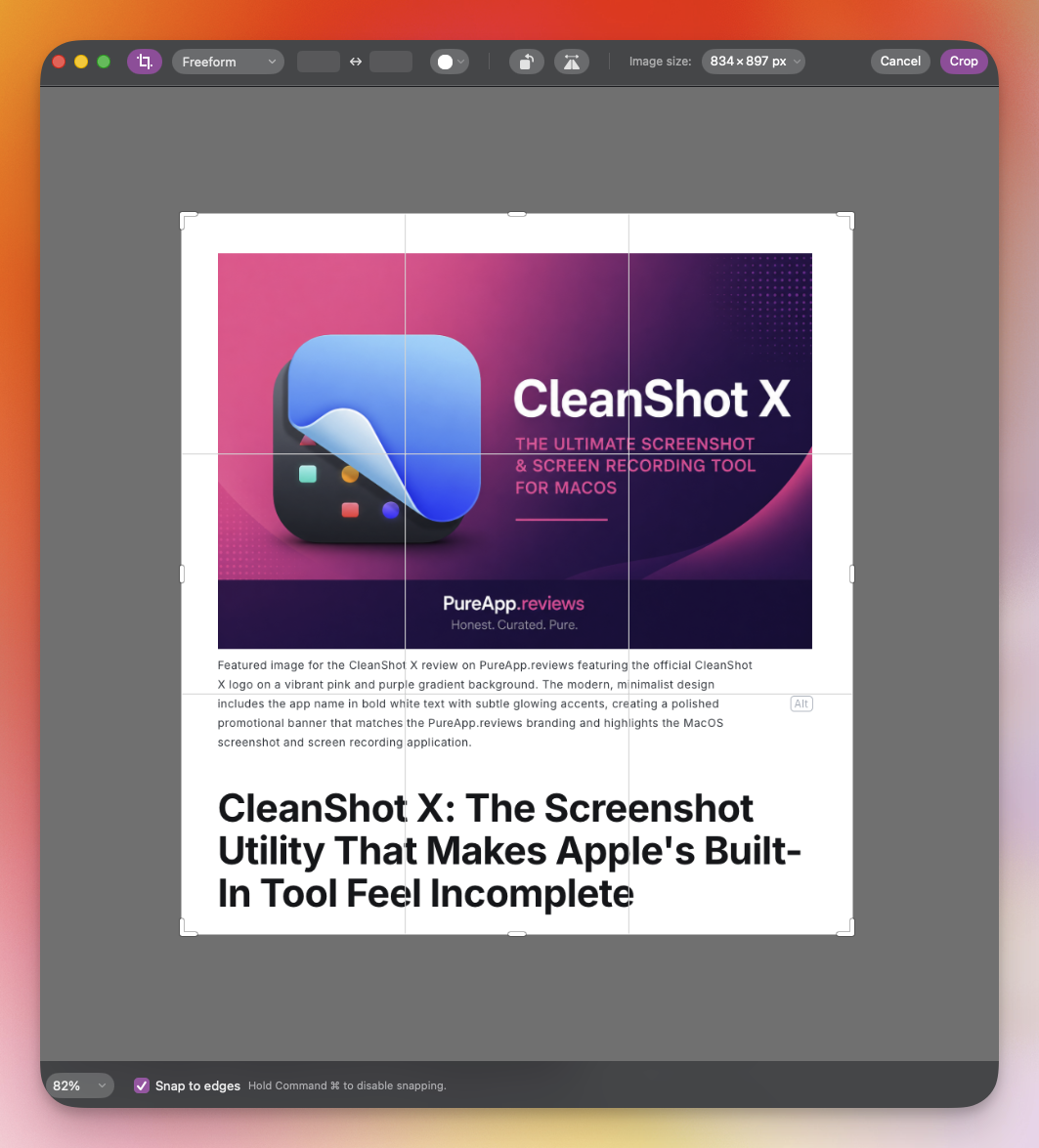
One thing I particularly appreciated was that CleanShot X doesn't try to force a completely new workflow on you. If you're already comfortable using keyboard shortcuts to capture screenshots in MacOS, you can continue working in a familiar way while gradually discovering everything else the application has to offer. Instead of replacing your habits overnight, it naturally builds upon them. That makes the learning curve surprisingly gentle.
During my first several days with the application, I found myself discovering new features almost by accident. I'd take a screenshot and notice another option. Later, I'd record my screen and realize there was a faster way to share the recording. A few days later I'd stumble across another small convenience that saved several extra clicks. It never felt overwhelming because the application reveals its capabilities gradually instead of presenting everything at once. That thoughtful approach to design is something I wish more Mac applications would embrace.
Everyday Screenshot Workflow
This is where CleanShot X really begins to shine. The biggest improvement isn't necessarily the screenshots themselves. It's everything that happens immediately afterward.
With Apple's Screenshot utility, taking a screenshot is only the beginning of a longer process. Depending on what you need, you may end up opening Preview, Finder, Messages, Mail, or another image editor before you're finally finished. Each individual step only takes a few seconds, but those seconds quickly add up over the course of a day.
CleanShot X removes many of those extra steps entirely. After capturing an image, a small floating preview appears near the edge of the screen. At first glance it seems like a minor convenience, but after using it for a while, it becomes one of the application's best features.
Instead of immediately saving the screenshot and forcing you to locate it later, the preview gives you instant access to everything you're most likely to do next. You can annotate the image, drag it directly into another application, copy it to the clipboard, upload it, pin it to your screen, save it to a specific location, or simply dismiss it if you no longer need it.
The result is a workflow that feels incredibly fluid. I found myself spending far less time digging through folders or opening additional applications because most of what I needed was already available in that floating preview. It sounds like a relatively small improvement on paper, but after using it dozens of times throughout the day, the difference becomes surprisingly significant.
One feature I especially appreciated was the ability to drag screenshots directly from the floating preview into applications like Notes, Slack, Messages, or even directly into Ghost while writing articles. Rather than saving an image to the desktop and cleaning it up later, everything stays organized without creating unnecessary clutter.
There are numerous times throughout the day that I take a screenshot, drag it into something like Slack and then click Done on the image within CleanShot X itself. I don't need to save a lot of screenshots I take. I just need to share them and this app makes it so simple to do just that. It's a subtle quality-of-life improvement, but it's one that quickly becomes difficult to live without.
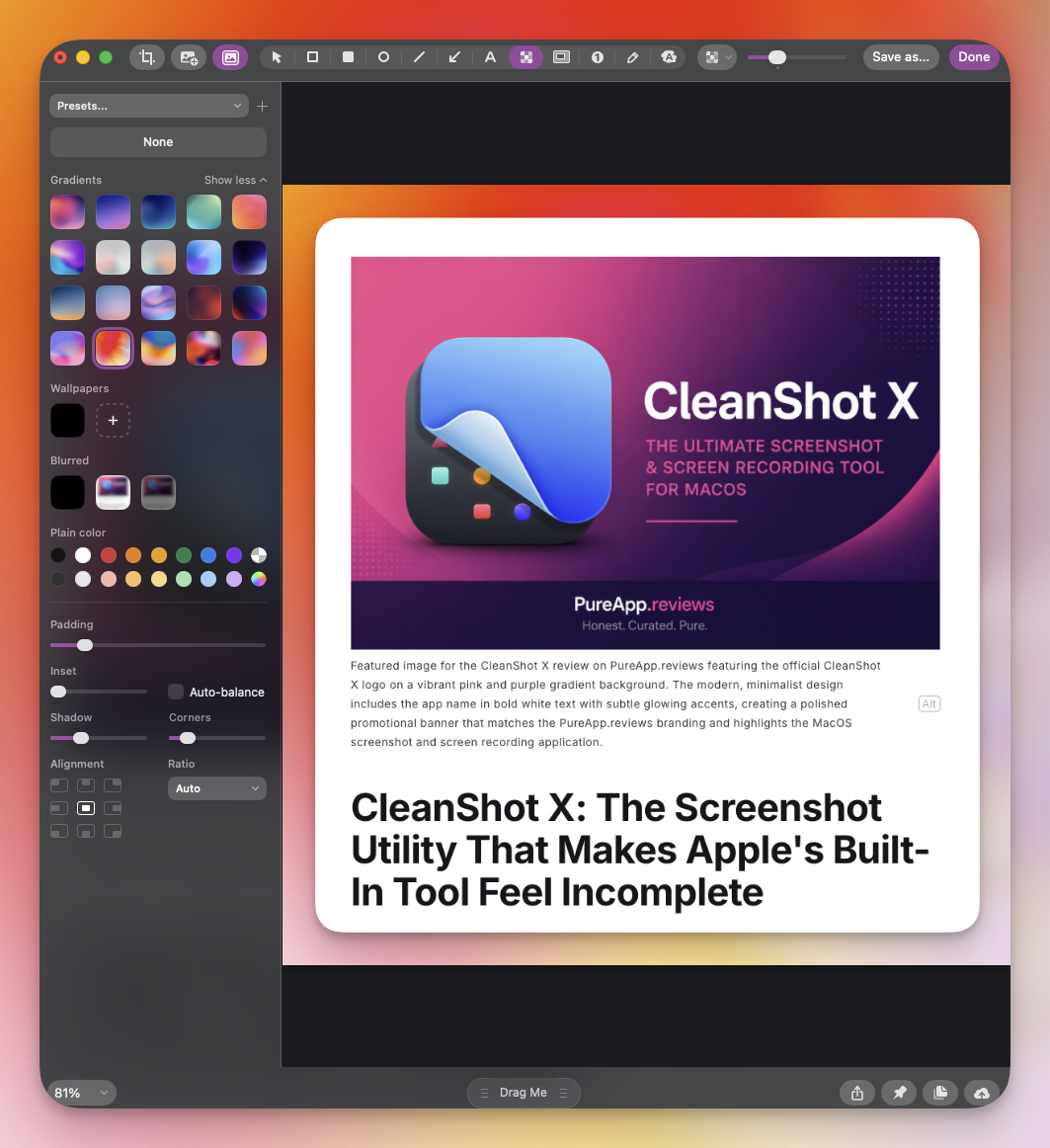
Another thoughtful touch is the ability to automatically hide desktop icons before taking a screenshot. If you're anything like me, your desktop occasionally becomes home to temporary downloads, screenshots, project folders, and files you're actively working on. While there's nothing wrong with that, it doesn't always make for the cleanest-looking screenshots.
CleanShot X can temporarily hide everything sitting on your desktop before capturing the image, leaving you with a clean, distraction-free background. As soon as the screenshot has been taken, your icons reappear exactly where they were. It's one of those features you probably wouldn't think to ask for until you've experienced it yourself.
Small details like these appear throughout the application, and together they make the entire screenshot process feel much more refined than Apple's default solution.
Scrolling Capture
One feature that immediately stood out to me was scrolling capture. This is a feature I use day in and day out, especially when I'm working. I'm constantly needing to take screenshots of longer screens for various reasons, and to have this ability via a keyboard shortcut makes it quick and painless.
If you've ever tried taking a screenshot of an entire webpage, a long settings menu, or a lengthy document using Apple's built-in tools, you already know how frustrating the process can become. You're often left taking multiple screenshots and trying to stitch them together manually afterward, which is both time-consuming and surprisingly difficult to make look clean.

CleanShot X removes that headache almost entirely. Instead of capturing only what's visible on your display, the application intelligently scrolls through supported content and creates one continuous image containing the entire page. The finished result looks seamless, making it ideal for tutorials, documentation, software reviews, or preserving information exactly as it appeared on screen.
While writing reviews for PureApp.reviews, I found this feature especially useful for capturing long application settings windows, feature lists, and webpages that simply wouldn't fit inside a traditional screenshot. Rather than breaking information across multiple images, I could present everything in a single, easy-to-follow capture that looked professional and was much easier for readers to understand.
Like many of CleanShot X's best features, scrolling capture isn't flashy. It simply solves a common problem exceptionally well.
And that's really what defines the entire application. Instead of trying to reinvent screenshots, CleanShot X focuses on removing the dozens of tiny frustrations that surround them. Individually those improvements might seem small, but together they create a workflow that's faster, cleaner, and considerably more enjoyable than what MacOS offers out of the box.
Pinning Screenshots Became One of My Favorite Features
Before using CleanShot X, I honestly didn't think I'd have much use for pinned screenshots. In fact, I'm not even sure I had heard of such a feature or even understood how it worked.
It sounded like one of those features that looked interesting on a marketing page but wouldn't become part of my everyday workflow.
I couldn't have been more wrong. Pinning allows any screenshot you've captured to remain floating above your other windows while you continue working. The screenshot stays visible until you dismiss it, making it incredibly useful as a visual reference.
It seems simple, but once you begin using it, you'll likely find new situations where it becomes invaluable.
While writing reviews for PureApp.reviews, I often need to compare application settings, remember keyboard shortcuts, or reference menus while writing about them. Before CleanShot X, that usually meant constantly switching between windows or repeatedly reopening the same screenshot.
With pinned images, that entire process disappears. Instead, I simply pin the screenshot beside the document I'm writing and continue working without interruption. The image remains exactly where I need it, allowing me to reference it at a glance instead of breaking my concentration every few minutes.
I also found it useful while configuring applications. There were several occasions where I wanted to follow setup instructions from a webpage while working inside another application. Rather than moving windows around or constantly flipping back and forth between browser tabs, I captured the instructions once, pinned the image, and completed the setup without losing my place.
It's such a small quality-of-life improvement, but it's one of those features that quietly changes the way you work. The more I used CleanShot X, the more I noticed this pattern. Features that initially seemed minor often ended up becoming the ones I relied on the most.
Screen Recording That Doesn't Feel Like an Afterthought
Many screenshot utilities eventually add screen recording as another item on the feature list. It's there because users expect it, but it often feels disconnected from the rest of the application. Recording tools can be clunky, require additional setup, or send you into an entirely different interface that doesn't match the experience of taking screenshots. Thankfully, that isn't the case with CleanShot X.
From the very first recording I made, it was obvious that screen recording had been given the same level of attention as every other part of the application. Starting a recording is quick, whether you're capturing your entire display, a specific application window, or just a selected portion of the screen. There aren't endless menus to work through or complicated settings that need to be adjusted before you can begin. Instead, the controls are intuitive enough that you'll probably be recording within seconds.
As someone who regularly writes tutorials and reviews, I found this particularly useful. There are plenty of situations where a screenshot simply isn't enough to explain how something works. Demonstrating a workflow, navigating through menus, or showing an animation often tells the story much better than several static images ever could. CleanShot X makes those recordings feel effortless.
Once a recording is complete, you're greeted with the same polished workflow you've already experienced with screenshots. Rather than forcing you to hunt through Finder for the finished file, it immediately appears in the familiar Quick Access Overlay. From there you can preview the recording, save it, copy it, upload it, or share it without interrupting what you're doing.
That consistency is something I came to appreciate more than I expected. Every part of the application behaves the same way, so once you've learned one workflow, you've essentially learned them all.
The recordings themselves are crisp and smooth, and I never noticed any significant performance issues while capturing my screen. Even when recording larger portions of the display, CleanShot X remained responsive and never felt like it was putting unnecessary strain on my Mac.
For most people, it probably won't replace professional video editing software, nor is it trying to. Instead, it excels at creating quick demonstrations, software walkthroughs, bug reports, and instructional videos without adding unnecessary complexity. That's exactly where I think it succeeds.
Pricing And Value
One of the things I appreciate most about CleanShot X is that its pricing feels refreshingly straightforward. Though I will admit to a lot of users, and even myself when I first started using MacOS nearly 2 years ago, the price seems a bit steep.
In a world where it seems like nearly every productivity application has moved to a subscription model, it's nice to see that you can still purchase CleanShot X with a one-time license. That license includes one year of updates, and after that year ends, the application doesn't suddenly stop working. You can continue using the version you own for as long as you'd like, or you can choose to renew your updates if you want access to the latest features and improvements. I think that's a fair approach.
Software takes time and money to develop, and I don't mind paying for quality applications that genuinely improve my workflow. At the same time, I also appreciate having the freedom to decide when, or if, I want to pay for future updates instead of being locked into another recurring subscription.
If you're already a Setapp subscriber, the value becomes even better. CleanShot X is included with Setapp, meaning you can download and begin using it immediately without making another purchase. For anyone already invested in the Setapp ecosystem, this is one of the first applications I'd recommend installing. It complements so many other productivity tools available through the service that it almost feels like an essential part of the subscription.
The optional CleanShot Cloud Pro plans are also available for users who need additional cloud storage, custom branding, or collaboration features. Personally, I think most individual users, including myself, will be perfectly happy with the standard application. The cloud upgrades make more sense for teams or professionals who regularly share screenshots and recordings with clients.
Regardless of which route you choose, I came away feeling that CleanShot X offers excellent value for the price. It's one of those utilities that quietly saves you time every single day, and over the course of weeks and months, those small time savings become surprisingly significant.
What I Loved
The longer I used CleanShot X, the more difficult it became to identify a single standout feature.
Initially, I assumed scrolling screenshots would be my favorite capability. Then I started relying on the Quick Access Overlay every day. After that, pinned screenshots became part of my writing workflow. Before long, I realized it wasn't one individual feature that impressed me; it was how well every feature worked together.
Everything about the application feels cohesive. The interface is polished without being distracting, performance remains consistently fast, and nearly every workflow has been carefully considered. Instead of overwhelming users with unnecessary options, the developers focused on removing friction from common tasks.
That philosophy is evident throughout the entire application. I also appreciate how respectfully CleanShot X integrates with MacOS. It doesn't try to replace the operating system or reinvent Apple's design language. Instead, it feels like a natural extension of MacOS itself, almost as though these features should have existed from the beginning.
Where It Could Improve
As much as I've enjoyed using CleanShot X, no application is completely perfect. Fortunately, the areas where I think there's room for improvement are relatively minor.
The first is simply the sheer number of features available. While I appreciate everything CleanShot X can do, I suspect some new users may not immediately discover many of its best capabilities. In fact, it was this very reason why I didn't give CleanShot X a try for the first 3 - 4 months of me switching to MacOS from Windows. Being new to the OS in general was kind of overwhelming at times, much less trying to figure out all the features of such a robust screenshot app.
Features like pinned screenshots, scrolling capture, and some of the workflow enhancements almost feel hidden simply because the application does such a good job of staying out of your way.
An optional guided tour highlighting some of these features could help new users get more value from the application right away.
I also think some of the cloud-focused features will be more appealing to professional teams than to individual users. That's certainly not a criticism of the software itself, but it's worth mentioning. If you're purchasing CleanShot X solely for personal use, there's a good chance you'll never need many of the Cloud Pro features.
Thankfully, those services remain entirely optional and never interfere with the core experience.
- ✓Beautiful, intuitive interface
- ✓Powerful screenshot tools
- ✓Advanced annotations
- ✓Built-in screen recording
- ✓Pin screenshots for reference
- ✓CleanShot Cloud integration
- ✓Fast, lightweight, and reliable
- ✗Learning curve for new users
- ✗Cloud features are optional, not essential
- ✗Higher cost than basic tools
- ✗Internet required for cloud uploads
- ✗Storage can add up
Final Verdict
CleanShot X is an outstanding example of how a well-designed utility can improve your everyday workflow without ever getting in your way. From capturing screenshots and recording your screen to annotating images and sharing content, every feature feels thoughtfully implemented and seamlessly integrated into MacOS. It's fast, intuitive, and polished in a way that makes it feel like a natural extension of the operating system rather than a third-party application.
While casual users may be perfectly satisfied with Apple's built-in screenshot tools, anyone who regularly captures, edits, or shares content from their screen will quickly appreciate everything CleanShot X brings to the table. Its combination of powerful features, exceptional ease of use, and attention to detail makes it one of the best productivity applications available for MacOS, and an easy recommendation for professionals, content creators, and everyday users alike.