Keep Your Menu Bar Clutter Free With Hidden Bar Revived
Is your menu bar looking cluttered and messy? There's a solution for that. Hidden Bar Revived for MacOS will help keep your menu bar nice and tidy!
If you're like me, even with my short period of time of using MacOS, your menu bar is likely going to get messy and cluttered very quickly. Mine has quite a few icons for all the different apps and stuff that I use. Most of which I actually don't need to see on a regular, or even at all. This is where Hidden Bar Revived comes into play, to help you declutter your menu bar and keep it looking tidy!
 Hidden Bar Revived
What Is Hidden Bar Revived?
What exactly is Hidden Bar Revived is the question I'm sure you're asking right now. Hidden Bar Revived is a maintained continuation of the original Hidden Bar by Dwarves Foundation, an ultra-light macOS utility that hides menu bar items to give your Mac a cleaner look.
Why Revived Over The Original?
One big thing to note here is, while Hidden Bar is no longer maintained, it is in the Apple App Store, but is's a very old version compared to what you can find via GitHub. I discovered this a few months back after originally using it and stumbling across Hidden Bar Revived, which is what I recommend you use over the original.
What Hidden Bar Revived Does Well
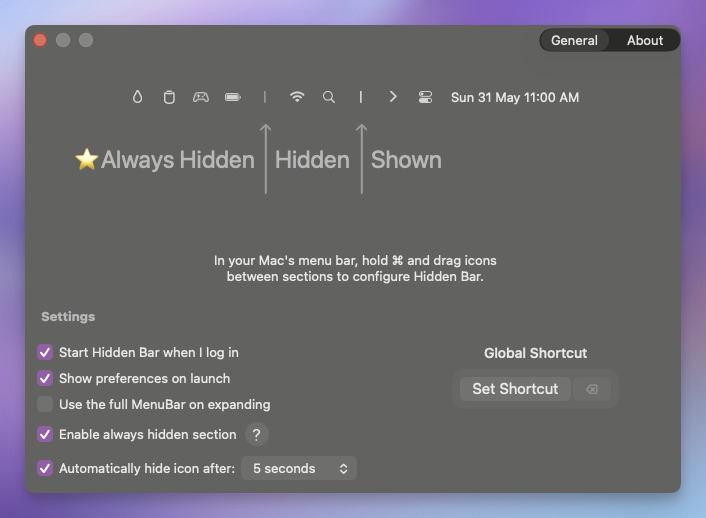
There are several things that I feel Hidden Bar Revived does really well. It lets you split menu-bar icons into visible and hidden sections, then reveal hidden items with a click. Setup is simple: hold ⌘ and drag icons around the menu bar, then use Hidden Bar’s arrow to collapse or expand them.
Key features include launch at login, auto-hide timers, global shortcut, full menu bar mode, Apple Silicon support, and multiple languages. It is also free, open source and the size of the app is small at about 7.4 MB, and Apple lists its privacy disclosure as Data Not Collected.
How It Compares To Alternatives
Compared to alternatives, Hidden Bar Revived is simpler than Bartender, Ice, Barbee, or iBar. MacRumors describes it as a free lightweight option with a divider, auto-hide durations, shortcuts, and full menu bar mode, while Ice adds more advanced reveal modes, hover/scroll behavior, always-hidden sections, overlap correction, and menu-bar styling.


My Setup
With Hidden Bar Revived installed and in use, I keep my menu bar to a very minimal when it comes to what it displays. Basically it's just my Status Bar Music Player so I can see what song is playing, the weather from CARROT Weather, Sound Source related stuff, and the time/date. I have about 10 - 12 other icons hidden and out of sight unless I absolutely need them. Most of which I rarely ever need to see, so hiding them just helps keep my OCD in check!
Final Thoughts
Are you using Hidden Bar Revived or even the original version currently? Do you use an alternative and if so, what app are you using? What makes you use it over Hidden Bar Revived if I might ask? Leave some comments and let discuss it!
If you'd like to follow me on Mastodon, you can do so here: Cliff on Mastodon.